 RadiusMapper
Drone photos to 3D
Turn a drone flight into a 3D site
Drone photogrammetry without desktop software, placed on your map
Drop the photos from your flight on the map and get a textured 3D model of the site, sitting right where you flew. No desktop software to learn.
Overview
Your flight photos should end up on the site, not in a folder
A site flight leaves you with a few dozen photos. Turning them into a model usually means desktop photogrammetry software that ties up a workstation for the run, or a service you send them to and wait on. Either way, the result lands somewhere other than the map you're working in.
Here you drag the photos onto the map and pick High-quality mesh. They upload, drone photogrammetry runs on our servers, and a textured 3D model of the site lands at the flight's GPS location. Your parcel lines, drive times and other layers are already there around it.
Not every flight needs a model. Import as photos puts each shot where it was taken: overhead frames drape on the ground as overlays, and angled ones become pins pointing the way the camera faced. It's the right call when the photos are one straight pass, since a strip won't make a good mesh.
Textured mesh
Turn a Site Flight Into a Textured 3D Model
Pick High-quality mesh and get back to work. Processing runs on our servers, and the finished model sits at the flight's GPS location, set down on the ground. No desktop license, and no workstation stuck for the length of the run.
- Built from the overlapping photos of one flight
- Set down on the ground at the flight's GPS spot
- Keep working in the app while it processes
Before and during
Checks Before Upload, Progress While It Runs
If your photos form a single flight line, the dialog says so before anything uploads, because a strip won't reconstruct well. Once a job is running, you can see which stage it's on and how long it's been going, and stop it if you need to.
- Single flight line warning before anything uploads
- Each stage named, from matching photos to texturing
- Stop a job, or reload and pick it back up
These photos are a single flight line (412 x 38 m). Photogrammetry needs overlapping passes across the area, so this will not reconstruct well.
Placed photos
Every Photo Lands Where It Was Taken
Inspection photos usually end up as a folder of file names nobody can place. Import as photos puts each one on the map instead. Overhead shots drape over the ground they cover, and angled shots become pins that point the way the camera faced.
- Footprint worked out from altitude, lens and heading
- Pins show camera heading and field of view
- Adjustable overlay opacity against the basemap
Capabilities
What You Get Back From a Flight
Photogrammetry online
Overlapping flight photos become a textured 3D mesh on our servers, with no desktop software to install.
Built for real flights
A handful of overlapping photos covers a single building, and a few dozen covers a full site flown in passes.
Placed where it was flown
Finished models land at the flight's GPS location and are set down on the ground automatically.
Checks before you upload
The mesh option shows whether your photo count fits, an estimated time range, and a warning when the capture is a single flight line.
Runs while you work
Progress shows the current stage and elapsed time, survives a page reload and can be stopped at any point.
Photos on the map, no model needed
Straight-down shots drape as ground overlays on their footprint, and angled shots pin at the capture point with their heading.
Model photos don't pile up
Photos sent for a 3D job are used to build the model, not filed in your library, and stopping a job removes them.
Walk around it on the map
The finished model sits on the regular map, so you tilt and orbit it with your parcels, layers and LiDAR alongside.
Use Cases
Where a Drone Model Earns Its Keep
Documenting monthly construction progress with a drone 3D model
A project manager flies a commercial build at the end of every month for the owner's report. They want a 3D record of the pad, structure and laydown areas without shipping photos to an outside service each time.
Result: A 3D model for every month, sitting in the library and on the project map.
Building a drone 3D model of a warehouse roof before a replacement bid
A roofing estimator is bidding a full replacement on a large distribution building. They want the bid team to walk the roof, parapets and rooftop units in 3D instead of flipping through loose photos.
Result: A textured model of the roof, on the map where the building is, ready for the bid review.
Recording existing conditions on a parcel before design
A developer has a drone flight over a parcel they just optioned. The design team needs to see current conditions, edges and neighbors included, not just the lot itself.
Result: A current 3D record of the parcel inside its lot lines, ready for the design kickoff.
Placing inspection photos where they were taken
A facilities manager runs drone inspections across a multi-building campus. The photos pile up in dated folders, and nobody can tell where a given shot was taken.
Result: Every inspection photo on the map where it was taken, pointing the way the camera faced.
Reference
What you can make from drone photos
Import options
- Import as photos: each shot placed on its own
- High-quality mesh: full photogrammetry into a textured surface
- Three or more photos open the choice dialog
- One or two photos are placed as photos automatically
What to shoot
- JPG or PNG
- GPS location in the photo metadata
- Overlapping passes across the area
- Every part of the site seen from more than one angle
Photo placement
- Straight-down shots as ground overlays
- Footprint from altitude, lens and heading
- Angled shots as pins at the capture point
- Pin shows camera heading and field of view
- Adjustable overlay opacity
Before you start
- Photo count checked before anything uploads
- Estimated time range shown before you start
- Warning when the photos form a single flight line
- Place the photos instead when a mesh won't work
While it runs
- Progress with the current stage and elapsed time
- Stop button to cancel a running job
- Job picked up again after a page reload
- Keep working in the app while it processes
The finished model
- Placed at the flight's GPS location
- Set down on the ground automatically
- Adjustable model opacity
- Saved in your library as 3D site
- Zoom to layer, rename, remove or delete
Works With
Connected to the Rest of Your Map
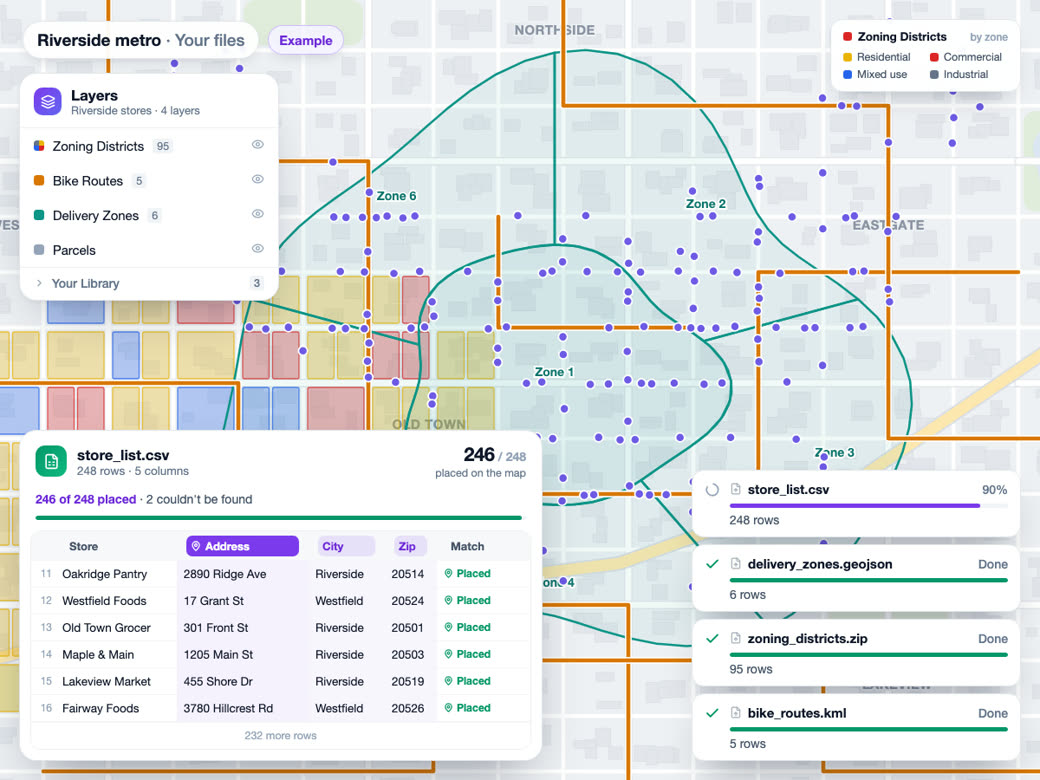
Bring your own data
Drone photos go through the same drop as any file, and every model or photo you make is saved to the same library as your other imports.
Learn more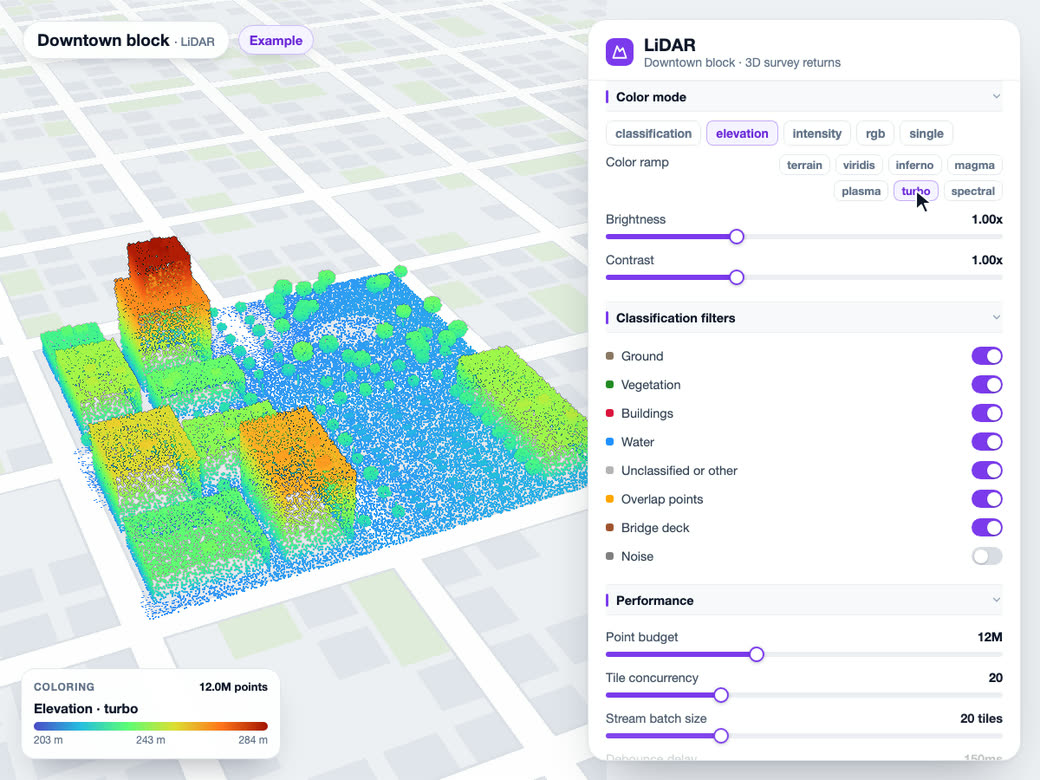
LiDAR in 3D
Open LiDAR over the same site to compare the public survey's terrain and canopy with your own current capture.
Learn more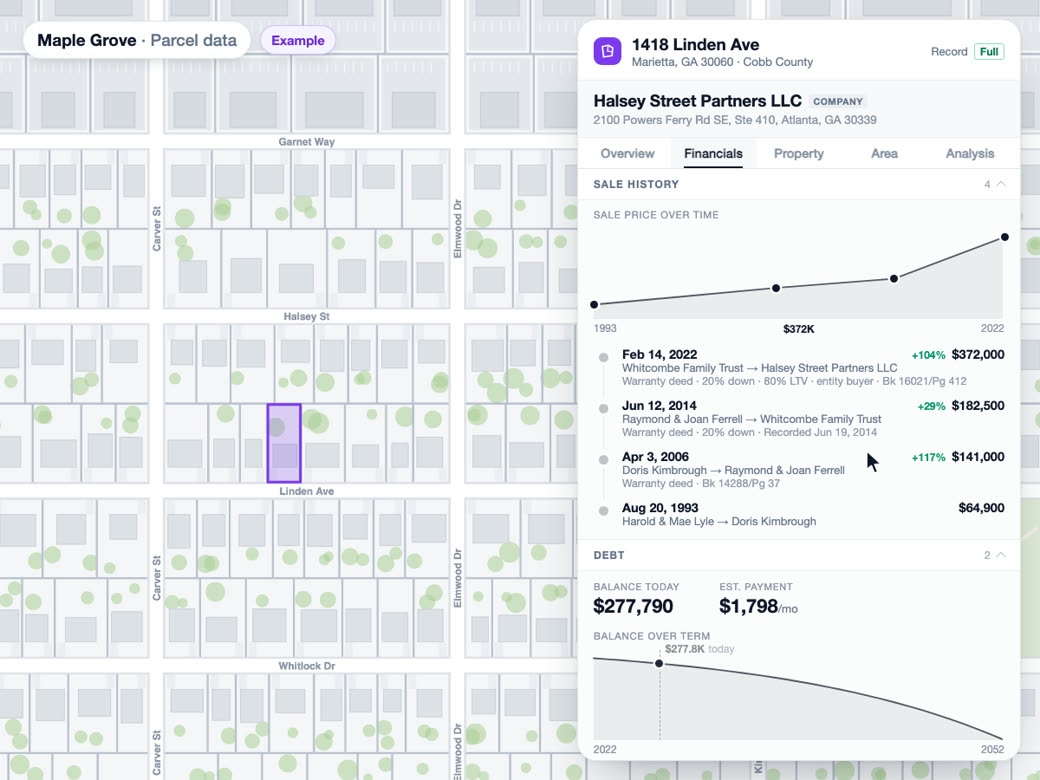
Parcel and owner data
The finished model sits on the same map as the parcel layer, so you can see the capture against the lot lines and select the parcel it covers.
Learn moreTry Drone photos to 3D on Your Own Site
Drone photos to 3D is part of Premium. Start free, then upgrade when you need it.
Common Questions
How do I turn drone photos into a 3D model?
Drag the photos from your flight onto the map and choose High-quality mesh. The photos upload, the model is built on our servers, and it shows up on the map at the flight's location when it's done.
How many photos do you need for drone photogrammetry?
A handful will do for a single building, and a few dozen covers a full site flown in passes. Overlap matters more than count: every part of the site should be seen from more than one direction. One straight pass along an edge won't reconstruct well, and the dialog warns you before you upload. A strip like that can still go on the map with Import as photos.
How long does drone photogrammetry take?
It depends on how many photos you send, so the mesh option shows an estimated time range before you start. The job runs on our servers. You can keep working, check which stage it's on, or reload the page and it picks back up.
Does it create an orthomosaic or a DEM?
No. What you get back is a textured 3D mesh. If you want flat imagery on the map, Import as photos drapes each straight-down shot over the ground it covers.
Can I compare a drone model with parcel lines?
Yes. The model sits on the same map as everything else, so turn on parcels and the lot lines draw around it. Lower the model's opacity from the layer style menu when you want to see the lines through it.
Are my drone photos stored?
Photos you send for a model are used to build it and aren't added to your library, and stopping a job removes them. Photos you import as overlays or pins are saved to your library like any other file.